Before you record
In the browser dialog, choose a different tab or window than this recorder page for the cleanest capture.
Guide
Practical tips for cleaner captures, better quality, and fewer surprises.
In the browser dialog, choose a different tab or window than this recorder page for the cleanest capture.
For screen recording, system audio, and chapter markers, Google Chrome and other Chromium browsers (Edge, Brave, Opera) work best. Firefox and Safari are supported with limitations — you will see a recommendation when you open the recorder in those browsers.
Learn about browser support1080p is sharpest. Use 720p for smaller files. Turn off Presenter bubble for the sharpest quality — screen-only skips canvas processing.
Capture tab or window sound when your browser supports it.
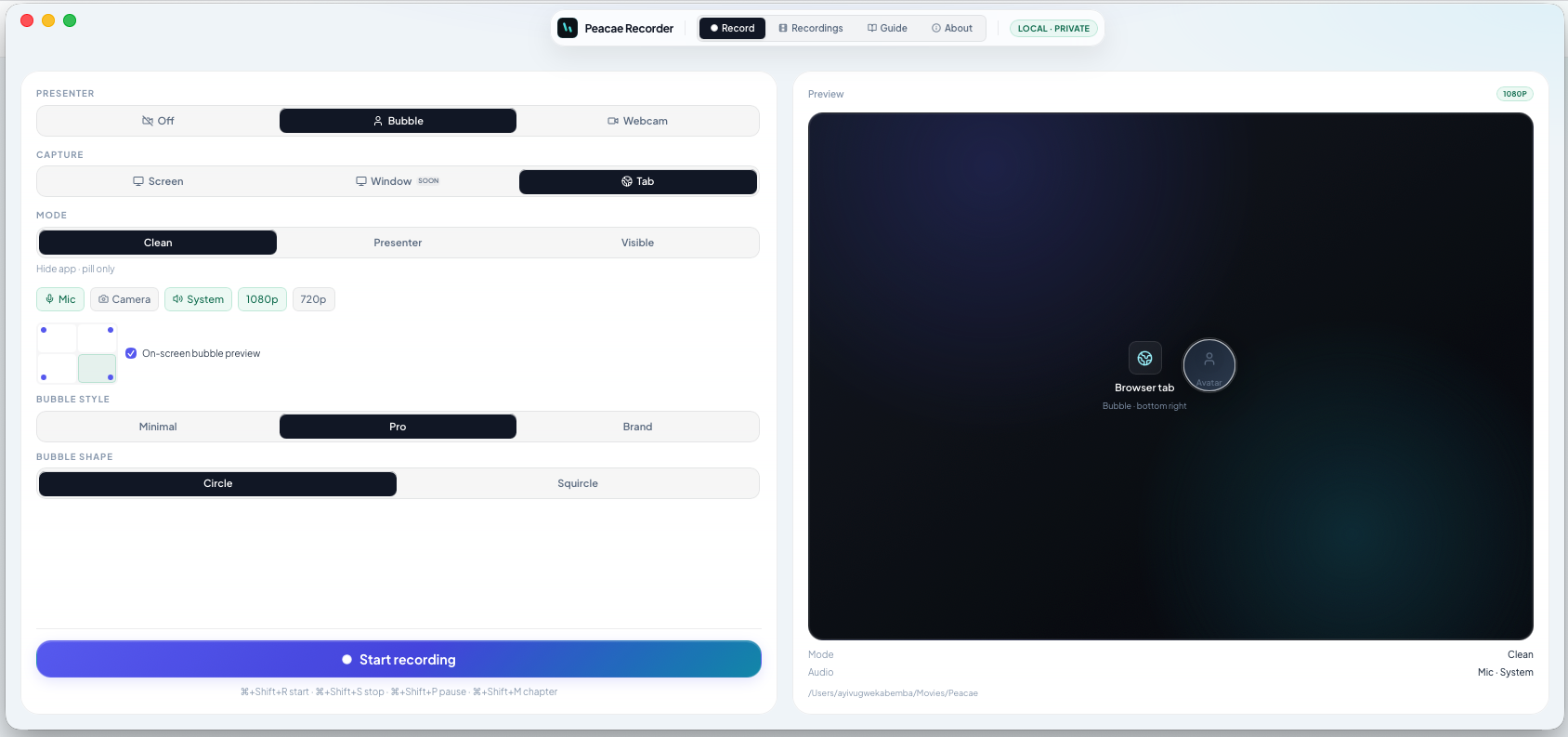
Turn on Presenter bubble to show yourself in a corner of the recording. Enable Camera to use your webcam feed, or leave it off for an avatar placeholder. Pick a corner position before you start.
Before recording, choose how the presenter bubble looks: Minimal, Pro, or Brand styling, and Circle or Squircle shape. Your choices appear in the live preview and match the exported video.
Use Open virtual webcam to feed this camera into other apps without recording. Opens a live camera window you can select in Zoom, Meet, Teams, or OBS.
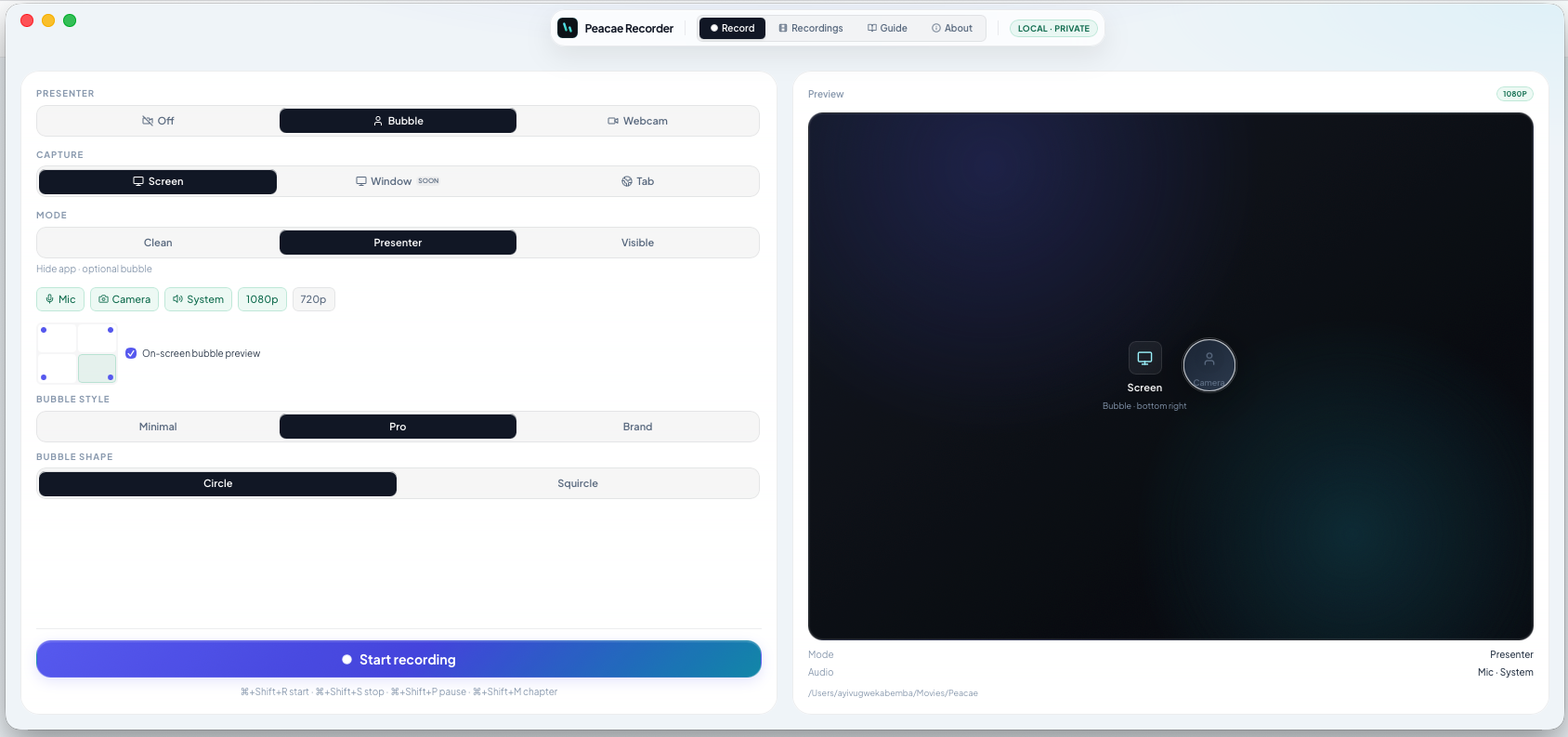
When recording a screen or tab with Camera enabled, tap the switch button in the recording bar to cross-fade between your shared content and a full camera view — without stopping. Everything stays in one continuous WebM file. If screen sharing ends, the recording falls back to camera automatically.
While recording, use Add chapter to drop timestamped markers you can jump to later during playback. Chapters are saved with the recording and appear in the library and viewer.
Your browser will also show its own sharing indicator — that's normal and keeps you in control.
Every recording is saved in this browser on this computer using IndexedDB. Nothing syncs to the cloud, and recordings from other devices or browsers will not appear here. If you clear site data or use private browsing, stored videos may be removed.
Use Download on any recording to save a WebM file to your computer. That is the best way to back up important videos, share them, or move them to another device. The in-app library is convenient, but downloads are yours to keep anywhere.
No uploads. No account. No tracking.
Short articles with screenshots on setup, presenter bubbles, switching views, and local storage.
A quick walkthrough of the web recorder setup: sources, audio, quality, and what stays on your device.
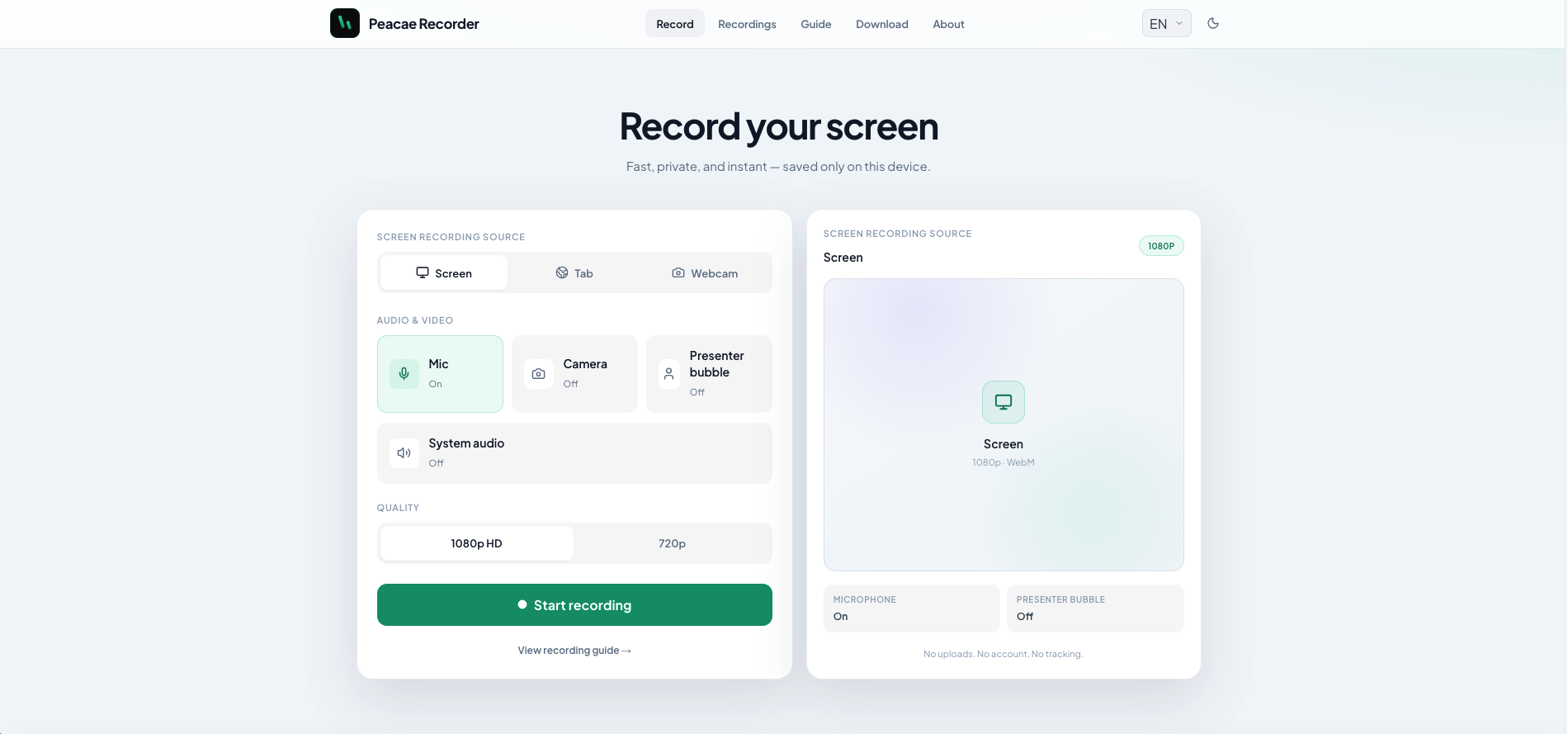
Style your on-screen presenter bubble before you record — position, preview, theme, and shape.
Change views during a recording with a smooth transition instead of starting a new file.
Open the recorder in your browser — no install and no account required.